Your notes, bound like books.
Study notes on the Mac: notebooks on a shelf, PDFs you can mark up, reminders that bring pages back.
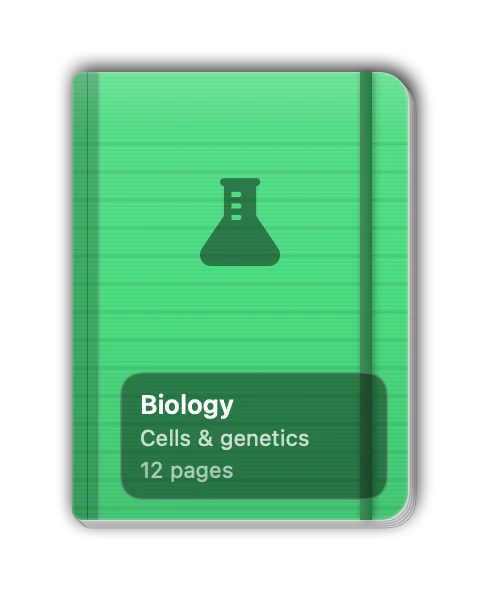
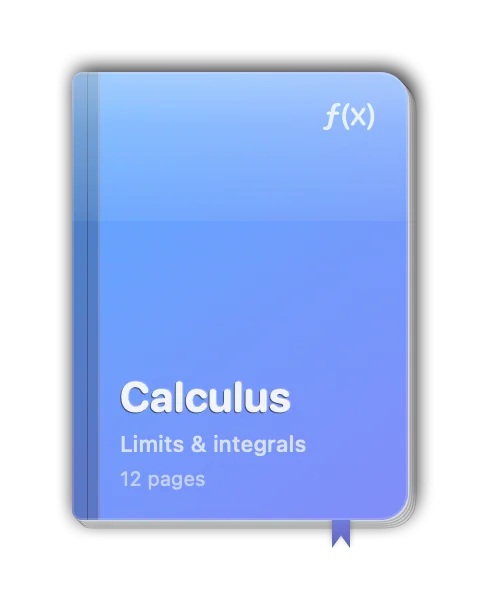
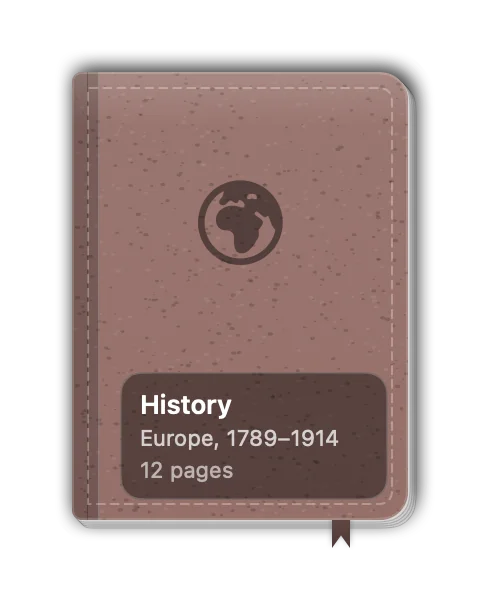
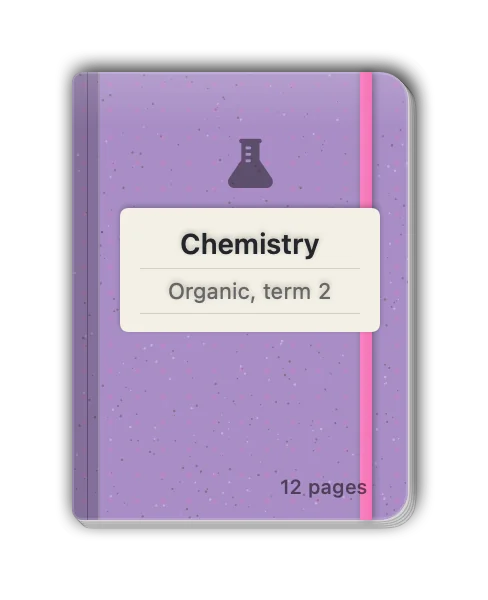
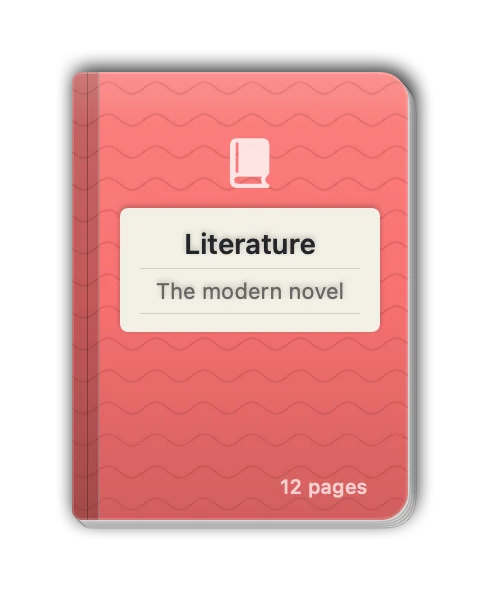
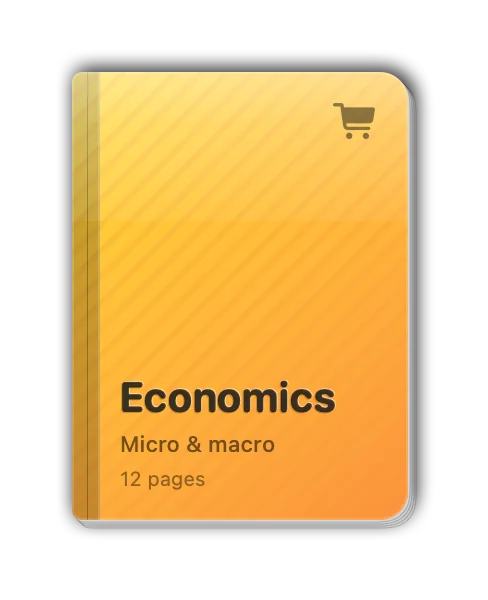
Every notebook gets a cover of its own.
Each cover is built from a material (classic, cloth, leather, kraft or glossy), a colour, a pattern and an icon. Add an elastic band and a ribbon, pick a label style (glass, sticker or embossed), or use a photo. Shuffle in the cover editor gives you a new combination in one click.
Then arrange the shelf your way: pin notebooks, sort them (manual, recent, name, created) and drag to reorder. Recent pages wait in a Continue strip and search reaches every page.
- Classic
- Cloth
- Leather
- Kraft
- Glossy
- Photo cover
- Elastic band
- Ribbon
- Glass, sticker or embossed label
A page that stays out of your way.
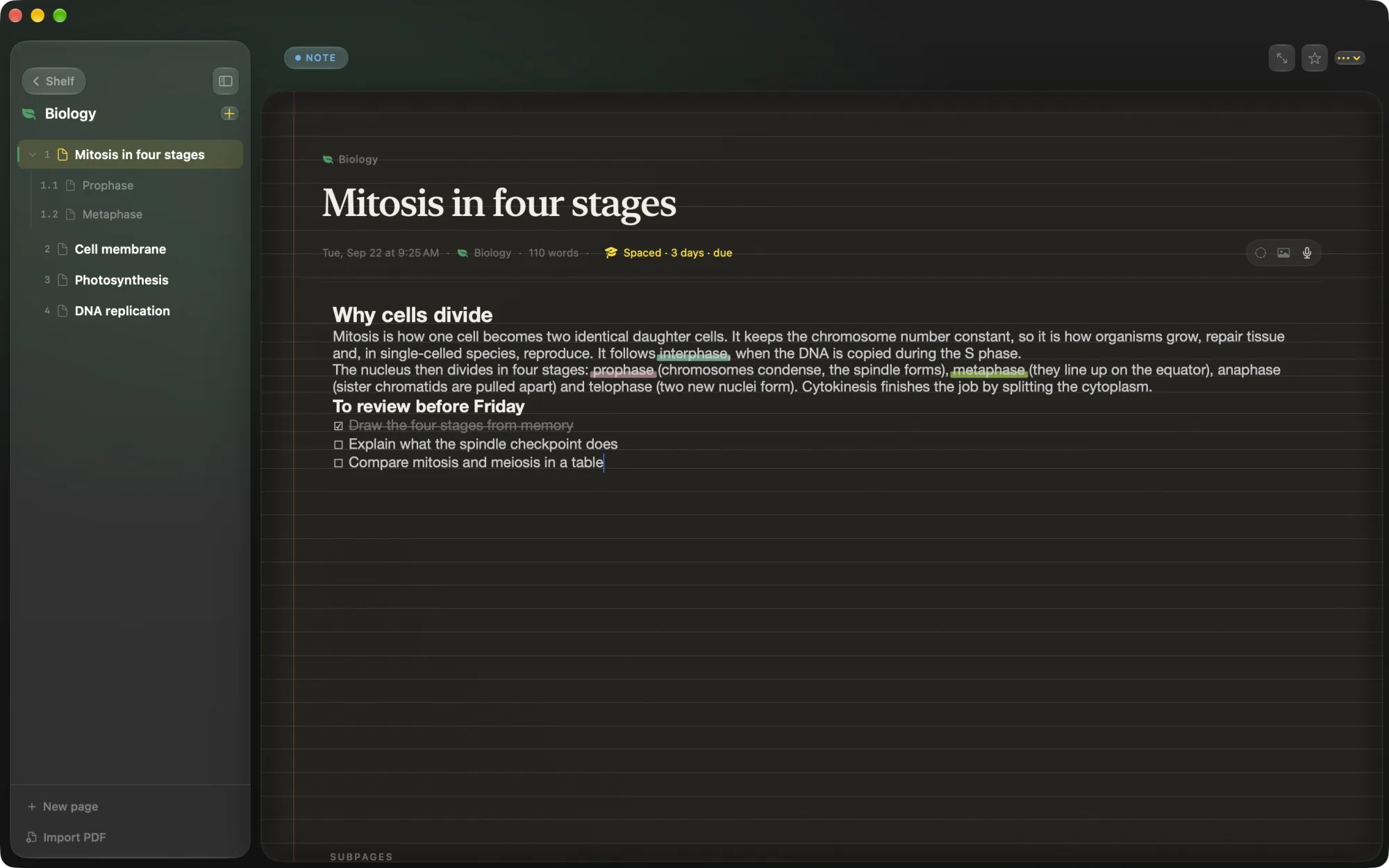
The page floats over a soft glow in your notebook's colour, and the toolbar fades as soon as you type. Everything else waits until you reach for it.
- Rich text
- Lists and checklists that continue on Return
- Slash commands
- Numbered subpages
- Focus mode
Paper and titles, per page
Every page picks its own paper: plain, lined, grid or dots. Titles start from six presets, then you tune font, size, weight, colour and alignment.
Underline with a marker
Underlines are drawn as marker bands over the lower half of the words. Pick from five classic colours, seven extra tones, or add your own.
One bar, only when you need it
Select some text and a floating bar appears above it: bold, italic, H1 to H3, underline colours, text colour, lists, alignment, font and more. With nothing selected, slash commands insert what you need.
- Bold and italic
- Headings
- Marker colours
- Text colour
- Lists
- Alignment
- Fonts
Your fonts
Keep a list of the typefaces you like. Every page's font menu offers them.
Pages and subpages
A numbered outline floats beside the page. Subpages nest beneath their page as 1.1, 1.2 and unfold when you select them.
Image stickers, anywhere on the page
Drop an image on the page, resize it from the corners, put it above or behind the text. Remove Background runs on your Mac, and Restore Original brings the picture back.
- ⌘NNew page
- ⌘\Hide outline
- ⇧⌘HMarker underline
- ⌘{⌘|⌘}Align
- /Slash commands
PDFs are pages, too. Mark them up.
A page can be a PDF, or a PDF can sit inside a text page. Highlight, underline, add post-its, draw arrows and circles. Marks are written into the PDF file itself, so they show in Preview too.
- HighlightThe five classic marker colours.
- UnderlineFor the line you know will be on the exam.
- Post-itText from 8 to 32 pt, anywhere on the page.
- Arrow, circlePoint at the diagram, ring the term.
Notes that come back when you need them.
Give any page a study plan and Folio tells you when to look at it again.
- SpacedSteps of 1, 3, 7, 14, 30 and 60 days, advancing each time you review.
- FixedOr simply every N days.
- ReminderOne notification on the day a page is due. Click it and the page opens.
- HomeThe Study card on the home screen lists what is due, with a Studied button, and the next 7 days.
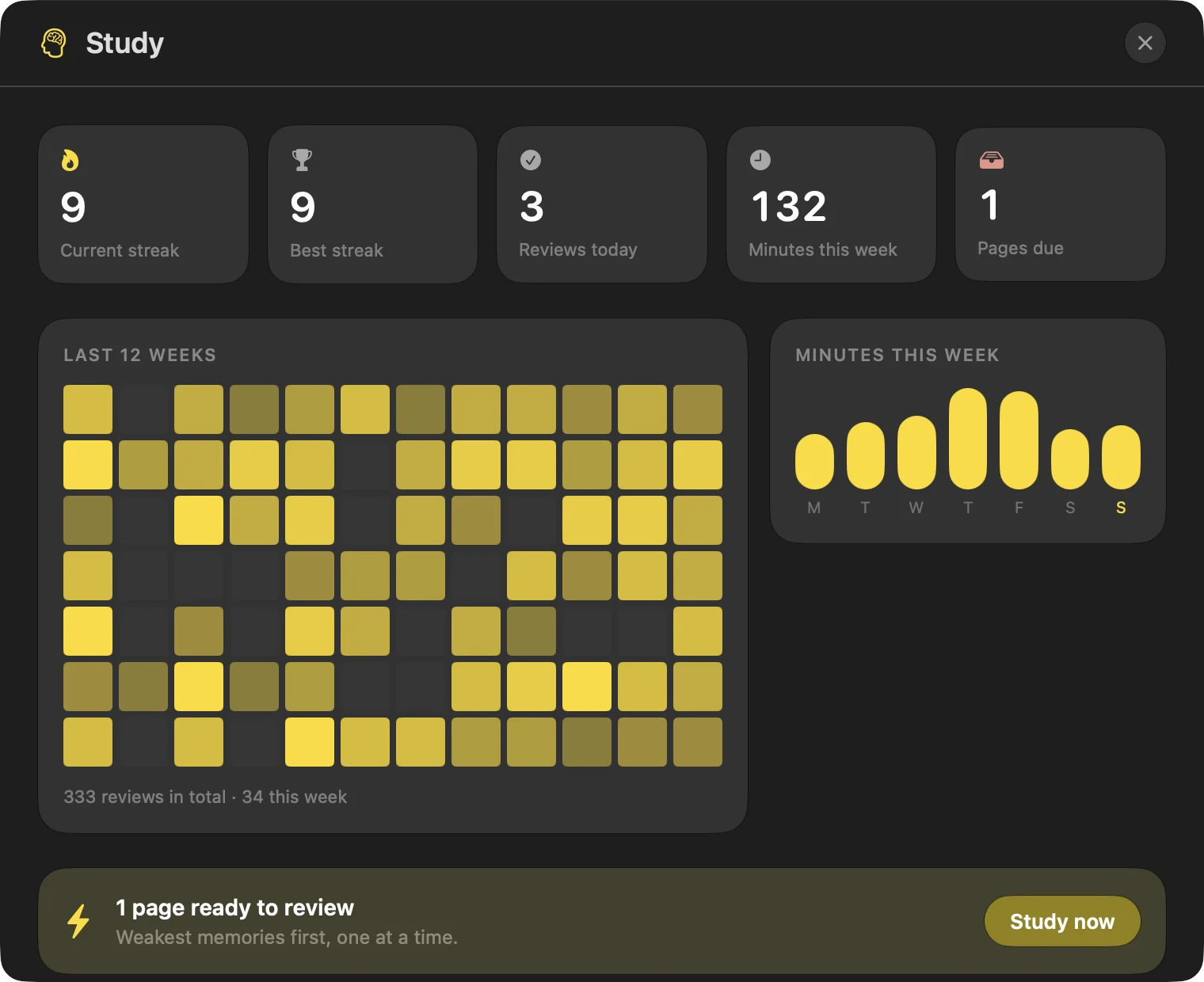
- PanelStreaks, a 12-week heatmap and retention per page.
- Study nowA session where you rate each page Forgot, Hard, Good or Easy.
What's new in 1.4.
Photos land where you drop them
Drop a photo on a page and it appears under the cursor — from Finder, Photos or a browser. On a PDF page it stays with that page and shows as a small thumbnail under the header.
Post-its, arrows and circles
Text pages take post-its, arrows and circles just like PDFs: the Annotate button in the page header, or type /post-it, /arrow or /circle. Drag to move, pull a handle to resize, double-click a post-it to write on it.
Fonts in their own typeface
Every font menu draws each option in the font it picks, with an icon for what it is: sans, serif, rounded, monospaced, handwriting or decorative.
Glass everywhere
Panels, menus and sheets are frosted glass over a background that drifts with colour, so the page stays the only thing that looks like paper.
Flashcards that come back
Cards made from your PDFs with free AI on your Mac — or Claude, OpenAI, Gemini, Ollama or your ChatGPT plan — studied with spaced repetition until they are ready.
Quizzes, one click away
Make a quiz from your pages with AI, or instantly from cards you already have. Retake it whenever you like, and send the answers you missed to your flashcards.
A new intro
The first-launch tour has been rewritten for today's Folio — the shelf, paper and outlines, marking up notes and PDFs, flashcards, study plans and privacy — in every language the app speaks.
Folio updates itself — a badge appears in the app when a new version is ready.
Private by design.
Stays on your Mac
Notes, PDFs and covers live in your Application Support folder. Nothing is uploaded.
No account
Install, enter your key, start writing. No sign-in, no cloud, no tracking.
Works offline
Everything runs with the Wi-Fi off. Beyond activating your key and checking for updates, Folio makes no network requests.
Backups on their own
Safety copies are kept automatically, so a bad day never costs you a notebook.
Trash, 30 days
Deleted pages wait for 30 days before they are gone. Restore them any time until then.
Export and import
Take everything with you as JSON or Markdown, and bring it back the same way.
Pay once. Keep it.
No subscription, no account. Try it free for 24 hours first. Folio updates itself, so the version you buy keeps getting better.
- Every feature, no tiers
- Bookshelf, notebook covers and paper styles
- PDF annotation written into your files
- Study reminders and spaced repetition
- Automatic updates, export to JSON and Markdown
- Drag Folio to Applications.
- Right-click it and choose Open.
- Click Open again.
Secure checkout by Lemon Squeezy. VAT included where it applies.
Questions, answered.
What do I need to run Folio?
A Mac running macOS 26 Tahoe or later.
Is there a subscription?
No. Folio costs €5, once, and it is yours for good. There is no account. Folio starts with a free 24-hour trial, then asks for the key from your receipt email.
Where are my notes stored?
On your Mac, in the Application Support folder. Nothing is sent anywhere. Folio keeps safety backups automatically and you can export everything to JSON or Markdown whenever you like.
Is there an iPad or iPhone version?
No. Folio is Mac only.
How do updates work?
Once a day Folio reads a small file on this website. If a new version exists, a badge appears in the app and nothing opens by itself. The download is checked against its checksum before it is installed. The check is anonymous.
Why do I have to right-click and Open?
Folio is not notarized by Apple yet, so macOS stops the first launch. Right-click Folio in Applications, choose Open, then click Open again. You only do this once.
Refunds, key problems, a new Mac?
Reply to your receipt email and we will help with your key, your purchase or moving Folio to a new Mac.